
SEO Tools & Strategy
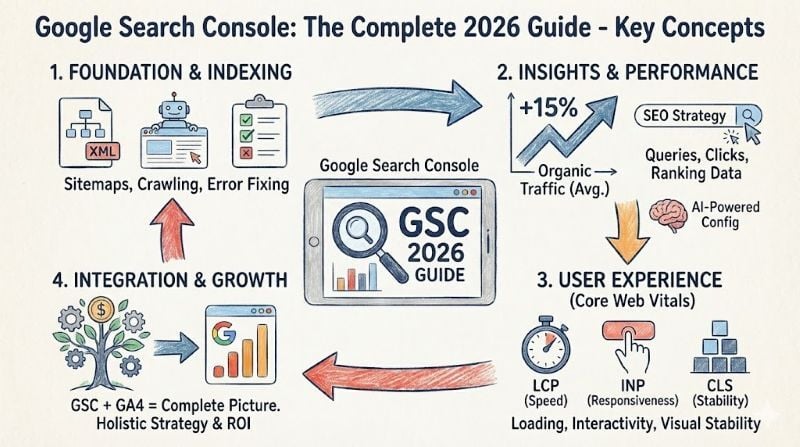
Whether you're diagnosing why pages aren't appearing in search results, identifying which keywords drive traffic, or tracking how Google's algorithm updates affect your site, Search Console provides the data you need. According to a Google and Wix case study, websites connected to Search Console see an average 15% increase in organic traffic, with e-commerce sites experiencing a 24% monthly increase in gross product value.
Google Search Console: The Complete 2026 Guide to Setup, Features & SEO Success
Google Search Console is a free web service provided by Google that helps website owners monitor, maintain, and troubleshoot their website's presence in Google Search results. It provides tools and reports for understanding how Google views your site, including indexing status, search performance data, and technical issues affecting visibility. For businesses serious about SEO, GSC is the foundational tool that reveals what's working, what's broken, and where the opportunities lie.
This guide covers everything from initial setup to advanced features, including the significant 2024-2025 updates that have transformed how SEO professionals use the platform. At Whitehat SEO, we use Search Console daily as part of our comprehensive SEO strategy work—it's the starting point for every audit and the ongoing monitor for every campaign.
What Is Google Search Console?
Google Search Console (formerly Google Webmaster Tools until May 2015) is Google's official free platform for website owners to understand how their site performs in search. Unlike Google Analytics, which tracks what users do on your site, Search Console shows you what happens before they arrive—how Google crawls your pages, which queries trigger your listings, and what technical issues might be holding you back.
Search Console serves two primary functions. First, it's a diagnostic tool: you can see exactly which pages Google has indexed, identify crawl errors, check mobile usability, and receive alerts about security issues or manual penalties. Second, it's a performance analytics platform: you can track impressions, clicks, click-through rates, and average position for every keyword and page combination.
Google Search Console vs Google Analytics: Understanding the Difference
| Aspect | Google Search Console | Google Analytics (GA4) |
|---|---|---|
| Primary focus | Search visibility & indexing | User behaviour on-site |
| Data source | Google Search only | All traffic sources |
| Shows keywords | Yes, all search queries | Limited (requires linking) |
| Historical data | 16 months | 14 months (standard) |
| Technical SEO | Extensive (crawl, index, Core Web Vitals) | Limited |
| Best for | SEO performance & troubleshooting | Conversion tracking & user journeys |
For comprehensive SEO reporting best practices, you need both tools working together. Search Console tells you which keywords bring visitors; Analytics tells you what those visitors do next. The integration between GSC and GA4 bridges this gap, which we'll cover in detail later.
Who Should Use Google Search Console?
Google recommends Search Console for anyone who wants their website to appear in search results. Specifically:
- Business owners who want visibility into their organic search performance and ROI
- SEO specialists and marketers who need data for optimisation decisions
- Web developers who need to diagnose technical issues affecting crawling and indexing
- Site administrators responsible for monitoring security issues and manual actions
- Content creators who want to understand which topics resonate with searchers
The platform is entirely free, with no premium tier or paid features. Google provides it because better-optimised websites create a better search experience for users—a genuine win-win.
How to Set Up Google Search Console
Setting up Search Console involves two steps: adding your property (website) and verifying ownership. The process takes 5-15 minutes depending on your verification method, though DNS verification may require waiting for propagation.
Step 1: Choose Your Property Type
When you first access Search Console at search.google.com/search-console, you'll choose between two property types. This choice is important—it affects what data you'll see.
| Property Type | What It Covers | Verification Required |
|---|---|---|
| Domain Property | All URLs across all subdomains (www, blog, shop), all protocols (http, https), and all paths | DNS record only |
| URL-Prefix Property | Only URLs matching the exact prefix you enter (e.g., only https://www.example.com/) | Multiple options available |
Whitehat SEO recommends Domain properties for most websites. They provide the most comprehensive data view, aggregating all variations of your domain automatically. This is especially important for sites with subdomains (like a separate blog.yoursite.com) or legacy HTTP pages.
Step 2: Verify Ownership
Verification proves to Google that you own or manage the website. The available methods depend on your property type:
For Domain Properties (DNS verification required):
- Copy the TXT record provided by Search Console
- Log into your domain registrar (GoDaddy, Namecheap, Cloudflare, etc.)
- Navigate to DNS settings
- Add a new TXT record with the verification string
- Return to Search Console and click Verify (may take up to 48 hours to propagate)
For URL-Prefix Properties:
- HTML file upload: Download the verification file and upload it to your site's root directory
- HTML meta tag: Add the provided meta tag to your homepage's <head> section (must be within the first 2MB of the page)
- Google Analytics: Use your existing GA tracking code (requires Edit permission)
- Google Tag Manager: Use your existing GTM container (requires Publish permission)
- DNS CNAME record: Add a CNAME record to your DNS settings
Once verified, Search Console begins collecting data immediately. However, you'll only see historical data from that point forward—it doesn't retroactively import data from before verification. This is why setting up GSC early is essential, even if you don't plan to actively use it right away.
Need help with the technical setup? Our guide on how to add users to Google Search Console covers team access configuration once your property is verified.
Performance Reports Explained
The Performance report is Search Console's most valuable feature for SEO. It shows how your site appears in Google Search results, which queries trigger your pages, and how users interact with your listings. Understanding these metrics is fundamental to any keyword research strategy.
The Four Core Metrics
| Metric | Definition | Why It Matters |
|---|---|---|
| Clicks | Number of times users clicked through to your site from search results | Direct measure of search traffic |
| Impressions | Number of times your site appeared in search results (whether scrolled into view or not) | Indicates visibility and keyword coverage |
| CTR | Click-through rate = Clicks ÷ Impressions | Shows how compelling your listing is |
| Position | Average ranking position in search results (1 = top) | Tracks ranking progress over time |
Available Dimensions for Analysis
You can break down performance data by several dimensions:
- Query: The actual search terms users typed
- Page: Which URLs received impressions and clicks
- Country: Geographic distribution of your search audience
- Device: Desktop, mobile, or tablet
- Search appearance: Rich results, AMP, video, and other special formats
- Date: Time-based trends and comparisons
Search Types Available
Search Console tracks performance across different Google properties:
- Web: Standard Google Search results (includes AI Overview clicks)
- Image: Google Images search
- Video: Video results in search
- News: Google News appearances
- Discover: Google Discover feed impressions
Filtering and Regex Support
Search Console supports powerful filtering including regular expressions (regex). This allows you to analyse specific keyword groups, URL patterns, or content types. For example, filtering queries containing "how to" shows all informational intent searches, while a regex filter for "/blog/.*seo" would show all blog posts with "seo" in the URL.
Mastering these filters is essential for turning raw data into actionable insights. When conducting a comprehensive SEO audit, we use filtered reports extensively to identify opportunities within specific content categories.
Page Indexing & URL Inspection
The Page Indexing report (formerly called Index Coverage) shows which of your pages Google has indexed, which it's excluded, and why. Understanding this report is crucial for diagnosing visibility issues and ensuring your important content appears in search.
Understanding Index Status Categories
| Status | Meaning | Action Required |
|---|---|---|
| Valid | Page is indexed and can appear in search | None—this is the goal |
| Valid with warnings | Indexed, but GSC detected issues worth reviewing | Review warnings; fix if impacting important pages |
| Excluded | Not indexed, usually by design or Google's choice | Verify exclusions are intentional |
| Error | Could not be indexed due to a problem | Fix immediately—these are blocking issues |
Common Exclusion Reasons (and What They Mean)
Understanding why pages are excluded helps you determine whether action is needed:
- "Crawled – currently not indexed": Google found the page but chose not to index it, typically because it deemed the content low-value or duplicate. This often requires content improvement. Whitehat SEO frequently encounters this issue during audits—it's one of the most actionable findings.
- "Discovered – currently not indexed": Google knows the URL exists but hasn't crawled it yet. Large sites often see this for newer pages. If persistent, it may indicate crawl budget issues.
- "Page with redirect": The URL redirects elsewhere—usually fine, unless you expected it to be the canonical version.
- "Alternate page with proper canonical tag": Google is indexing a different URL as the canonical. Check that this matches your intent.
- "Duplicate without user-selected canonical": Google found duplicate content and chose a canonical itself. You should specify your preferred version.
- "Blocked by robots.txt": Your robots.txt file prevents crawling. Ensure you're not accidentally blocking important content.
- "Soft 404": The page returns a 200 status but looks like an error page to Google. Fix by either serving proper 404s or adding real content.
These indexing issues are among the most common technical SEO mistakes to avoid. Addressing them often yields quick ranking improvements.
Using the URL Inspection Tool
The URL Inspection tool lets you check the index status of any specific URL. It shows:
- Whether the URL is indexed
- When Google last crawled it
- Which canonical URL Google selected
- Mobile usability status
- Any structured data detected (and validation results)
- A screenshot of how Googlebot rendered the page
Critically, you can also "Request indexing" for new or updated pages. While this doesn't guarantee faster indexing, it adds the URL to Google's priority crawl queue. Limit this to genuinely important updates—excessive requests may be ignored.
Core Web Vitals Report
Core Web Vitals are Google's standardised metrics for measuring user experience. Since 2021, they've been a ranking factor, making the Search Console Core Web Vitals report essential for SEO. The report shows how your pages perform based on real user data from the Chrome User Experience Report (CrUX).
The Three Core Web Vitals Metrics
| Metric | What It Measures | Good | Needs Work | Poor |
|---|---|---|---|---|
| LCP Largest Contentful Paint |
Loading speed—when main content becomes visible | ≤2.5s | 2.5-4s | >4s |
| INP Interaction to Next Paint |
Responsiveness—how quickly page responds to user actions | ≤200ms | 200-500ms | >500ms |
| CLS Cumulative Layout Shift |
Visual stability—how much content shifts during loading | ≤0.1 | 0.1-0.25 | >0.25 |
The Core Web Vitals report in Search Console groups your URLs by status (Good, Needs Improvement, Poor) based on the 75th percentile of user experiences. This means a page is only marked "Good" if 75% of visits meet the thresholds—not just average performance.
Improving Core Web Vitals often requires technical changes to hosting, code efficiency, and resource loading. For B2B websites, our Core Web Vitals guide for B2B provides specific recommendations.
New 2025 Features
Google has significantly enhanced Search Console throughout 2024 and 2025. These updates transform how SEO professionals analyse and act on search data. Here are the most impactful additions:
AI-Powered Configuration (December 2025)
The most significant recent update allows users to build Performance reports using natural language queries. Instead of manually selecting filters and dimensions, you can type queries like "show me mobile clicks for blog posts last month" and Search Console will configure the report automatically. This dramatically speeds up analysis for both beginners and experts.
Branded Queries Filter (November 2025)
Search Console now automatically identifies variations of your brand name and lets you filter performance data by branded vs. non-branded queries. This is crucial for understanding true organic SEO performance—branded searches (where people already know you) behave very differently from non-branded discovery searches.
Custom Chart Annotations (November 2025)
You can now add contextual notes directly to performance charts. Each annotation allows up to 120 characters—enough to note "launched new homepage design" or "Google core update". This creates an invaluable historical record for correlating traffic changes with site updates or algorithm shifts.
Query Groups (October 2025)
Query groups automatically cluster similar search queries together, including misspellings, phrasing variations, and synonyms. Instead of analysing "hubspot crm setup" and "setting up hubspot crm" separately, you can now see aggregated performance for the intent behind these queries.
Hourly Performance Data (December 2024)
Search Console now offers hourly granularity for performance data with exportable reports. This is particularly valuable for time-sensitive content, breaking news publishers, or diagnosing sudden traffic drops.
Social Channels Integration (December 2025)
A new feature allows unified viewing of website search performance alongside social media profile performance. This helps marketers understand how social presence influences search visibility—particularly relevant as Google increasingly features social profiles in branded searches.
Search Console Insights Integration (June 2025)
Search Console Insights—the content-centric performance dashboard—has been integrated directly into the main Search Console interface. This surfaces your best-performing content, trending topics, and traffic sources without leaving GSC.
GA4 Integration
Linking Search Console with Google Analytics 4 combines search performance data with on-site behaviour analysis. This integration provides the complete picture: which keywords drive traffic (GSC) and what that traffic does on your site (GA4).
How to Link Search Console to GA4
- Open Google Analytics 4 and navigate to Admin
- Under Product Links, select "Search Console Links"
- Click "Link" and select your Search Console property
- Choose the web data stream to associate
- Confirm and submit
Once linked, you'll access GSC data within GA4 under Reports > Acquisition > Search Console. Available reports include:
- Queries report: Shows search queries with impressions, clicks, CTR, and position alongside GA4 engagement metrics
- Google organic search traffic: Landing page performance combining GSC and GA4 data
- Looker Studio integration: Build custom dashboards combining both data sources
Why Your GSC Clicks Don't Match GA4 Sessions
You'll likely notice discrepancies between GSC clicks and GA4 sessions. This is normal and happens because:
- GSC counts every click; GA4 may not fire if users bounce before the tracking code loads
- Ad blockers and browser privacy features can prevent GA4 tracking
- GSC and GA4 use different definitions of a "session"
- Data processing timing differs between platforms
Expect roughly 10-30% variance. Larger discrepancies may indicate tracking implementation issues worth investigating. This data integration work is part of the website audit services Whitehat SEO provides.
Fixing Common Issues
Here's how to diagnose and resolve the most frequent problems SEO professionals encounter in Search Console:
Pages Not Being Indexed
"Crawled – currently not indexed" is the most common indexing issue. Google found your page but chose not to add it to the index. Solutions include:
- Improve content quality: Add depth, original insights, or unique data
- Consolidate thin content: Merge shallow pages into comprehensive resources
- Build internal links: Link to the page from relevant, authoritative pages on your site
- Earn external links: Pages with backlinks are more likely to be indexed
- Re-request indexing: After improvements, use URL Inspection to request re-crawling
Fixing 404 Errors
404 errors appear when Google tries to access URLs that don't exist. While some 404s are normal (deleted pages), problematic ones occur when:
- Pages were moved without redirects
- Internal links point to non-existent URLs
- External sites link to incorrect URLs
Fix by: implementing 301 redirects to relevant pages, updating internal links, or using the Removals tool to deprioritise truly deleted content that keeps being recrawled.
Soft 404 Errors
A soft 404 occurs when a page returns a 200 (OK) status code but displays error-like content (e.g., "No results found" or an empty page). Search Console flags these because they waste crawl budget and confuse indexing.
Fix by: either returning a proper 404 status code, redirecting to a relevant page, or adding real content if the page should exist.
Blocked by robots.txt
This occurs when your robots.txt file prevents Googlebot from accessing pages. Common causes include overly broad disallow rules or leftover staging site configurations.
Fix by: reviewing your robots.txt at yoursite.com/robots.txt, removing or adjusting rules blocking important content, and waiting for Google to recrawl.
GSC Best Practices for SEO Success
Based on Whitehat SEO's experience managing Search Console for hundreds of client websites, here are the practices that deliver the best results:
Set Up Early, Even If You're Not Ready
Search Console only stores 16 months of data, and it doesn't backfill before verification. Even if you're not planning active SEO work immediately, verify your property now. Future you will thank past you when you need historical baseline data.
Check Weekly, Act Monthly
Given the 48-hour data delay, daily monitoring is counterproductive. Weekly checks catch issues before they compound; monthly deep-dives inform strategy adjustments. Set a recurring calendar reminder.
Prioritise "Quick Win" Keywords
Filter for keywords where you rank positions 4-10 with decent impressions. These are close to page one—small improvements often yield significant traffic gains. Target these with on-page SEO optimisation efforts.
Submit Your XML Sitemap
Use the Sitemaps report to submit your XML sitemap. This helps Google discover your pages faster and shows you how many submitted URLs are actually indexed. A large gap between submitted and indexed URLs indicates content quality or technical issues.
Use Annotations to Track Changes
With the new annotation feature, document every significant change: site launches, content updates, technical fixes, and algorithm update dates. This transforms Search Console from a reporting tool into an institutional knowledge base.
Monitor Security & Manual Actions
Even if everything seems fine, periodically check the Security Issues and Manual Actions reports. These problems can tank your visibility overnight, and Google only notifies you within Search Console.
Export Data for Long-Term Analysis
Since GSC only retains 16 months of data, regularly export key metrics to your own systems. This enables year-over-year comparisons and long-term trend analysis that Search Console alone can't provide. Your content-driven SEO strategy depends on this historical perspective.
Frequently Asked Questions
Is Google Search Console free to use?
Yes, Google Search Console is completely free with no premium tier or paid features. Google provides it because better-optimised websites improve the search experience for users. All features, including performance reports, URL inspection, and Core Web Vitals data, are available at no cost.
How long does it take for data to appear in Google Search Console?
Search Console data typically appears within 48 hours of collection. For newly verified properties, you'll see data begin populating within a few days. Historical data from before verification is not available—Search Console only collects data from the point of verification forward.
How do I submit a sitemap to Google Search Console?
Navigate to Sitemaps in the left menu, enter your sitemap URL (typically /sitemap.xml), and click Submit. Google will process the sitemap and begin crawling the URLs it contains. You can monitor submission status and see how many URLs were discovered and indexed.
Why are my pages not indexed in Google Search Console?
Common reasons include: content Google deems low-quality or duplicate ("Crawled – currently not indexed"), robots.txt blocking, noindex meta tags, slow server response, or insufficient internal/external links. Check the Page Indexing report for specific exclusion reasons and use URL Inspection for page-level diagnostics.
What does "Crawled – currently not indexed" mean?
This status means Google found and crawled your page but chose not to add it to the search index. Google considers the page's content insufficient, duplicate, or not valuable enough to warrant indexing. Improving content quality, adding unique value, and building internal links typically resolves this issue.
How do I request indexing for a new page?
Use the URL Inspection tool: paste the page URL in the search bar at the top of Search Console, wait for the inspection to complete, then click "Request Indexing." This adds the URL to Google's priority crawl queue. Limit requests to genuinely important new or updated pages.
Why is my Search Console data different from Google Analytics?
Discrepancies of 10-30% are normal due to different tracking methods. GSC counts all clicks; GA4 requires JavaScript to fire. Ad blockers, privacy browsers, and users who bounce before tracking loads all cause GA4 to underreport. The platforms also define sessions differently and process data on different timelines.
How long does Google Search Console store data?
Search Console retains 16 months of performance data. After this period, older data is permanently deleted. To maintain longer historical records, regularly export data to spreadsheets or analytics platforms. This is essential for year-over-year comparisons and long-term SEO trend analysis.
What are manual actions and how do I fix them?
Manual actions are penalties applied by Google's human reviewers for violating webmaster guidelines—such as unnatural links, thin content, or spam. Check the Manual Actions report in Search Console. If affected, address the specific violation, document your fixes, and submit a reconsideration request through Search Console.
Does Search Console show AI Overview traffic?
Yes, clicks from Google's AI Overviews and AI Mode are included in Search Console's "Web" search type data. However, they're not separately filterable—you cannot isolate AI Overview traffic from standard search results. All links within a single AI Overview display as position 1 in the data.
Start Using Search Console Today
Google Search Console is the foundation of effective SEO. It's free, it's essential, and the sooner you set it up, the more historical data you'll have when you need it. Whether you're diagnosing indexing issues, tracking keyword rankings, or monitoring Core Web Vitals, GSC provides the data that informs every optimisation decision.
The 2024-2025 updates—AI-powered configuration, branded query filtering, hourly data, and annotations—have transformed Search Console from a basic monitoring tool into a sophisticated SEO analytics platform. Combined with GA4 integration, it offers the complete picture of your search performance.
At Whitehat SEO, Search Console is where every client engagement begins. It tells us what's working, what's broken, and where the opportunities lie. We use it daily as part of our professional SEO services—and we believe every website owner should too.
Need help getting more from Google Search Console?
Our SEO team can audit your Search Console data, identify quick wins, and build a strategy for sustainable organic growth.
Let's Have a ChatReferences & Further Reading
- Google Search Central. "Get started with Search Console." developers.google.com/search/docs/monitor-debug/search-console-start
- Google Support. "About Search Console." support.google.com/webmasters/answer/9128668
- Google Search Central. "Using Search Console and Google Analytics Data for SEO." developers.google.com/search/docs/monitor-debug/google-analytics-search-console
- Google Search Central. "Wix SEO Case Study" (15% traffic increase findings). developers.google.com/search/case-studies/wix-case-study
- Hardwick, Joshua. "How to Use Google Search Console." Ahrefs Blog. ahrefs.com/blog/google-search-console
- Pol, Tushar. "Google Search Console: The Ultimate Guide." Semrush Blog. semrush.com/blog/google-search-console
- Search Engine Land. "Google Search Console Library." searchengineland.com/library/platforms/google/google-search-console
- Google Web Developers. "Core Web Vitals." web.dev/vitals