
Author: Clwyd Probert, CEO & Founder, Whitehat SEO Ltd
Published: 24 January 2026 | Last Updated: 21 March 2026 | Explore our digital marketing FAQs
How Do You Add a User to Google Search Console and Google Analytics 4?
To add a user to Google Search Console, navigate to Settings > Users and permissions > Add user, then enter their email address and select Full or Restricted access. For Google Analytics 4, go to Admin > Account Access Management > Add users, and assign an appropriate role (Administrator, Editor, Marketer, Analyst, or Viewer). Both platforms require the user to have a Google account—this allows your SEO agency to access your data without sharing login credentials.
Granting proper analytics access is essential when working with marketing agencies or expanding your internal team. Google Analytics commands 78.8% market share among analytics tools, whilst 80% of UK businesses use it to track website performance. Yet many business owners struggle with the technical process of adding users securely.
This guide walks you through the current 2026 process for both Google Search Console (GSC) and Google Analytics 4 (GA4), including which permission levels to grant, security best practices, and UK GDPR considerations. Whether you're onboarding a new HubSpot partner or giving your marketing manager reporting access, you'll find everything you need below.
Key Takeaway
Grant your SEO agency Full User access in Google Search Console and Marketer or Analyst access in GA4 at the property level. Never share login credentials — always add users through the proper interface. Ensure you have a UK GDPR-compliant Data Processing Agreement before sharing GA4 access with any third party.
78.8%
GA Market Share Among Analytics Tools
80%
UK Businesses Using Google Analytics
100
Max Non-Owner Users Per GSC Property
99.9%
Compromised Accounts Without MFA
Sources: W3Techs 2025, Microsoft Security Research 2025
Adding Users to Google Search Console: Step-by-Step Process
Google Search Console uses a property-based permission system with a maximum of 100 non-owner users per property. The process takes approximately two minutes and requires you to have Owner-level access yourself.
Follow these steps to grant GSC access:
- Sign in to Google Search Console at search.google.com/search-console
- Select the correct property from the dropdown menu in the top-left corner (choose between Domain or URL-prefix property)
- Click Settings in the left-hand navigation panel
- Select Users and permissions under the Users and Property Owners section
- Click the Add user button in the top-right corner
- Enter the user's email address (must be associated with a Google account)
- Choose the permission level: Full or Restricted
- Click Add to confirm
The new user will receive an email notification and can immediately access your Search Console data. For a deeper understanding of how to interpret that data, see our complete guide to Google Search Console.
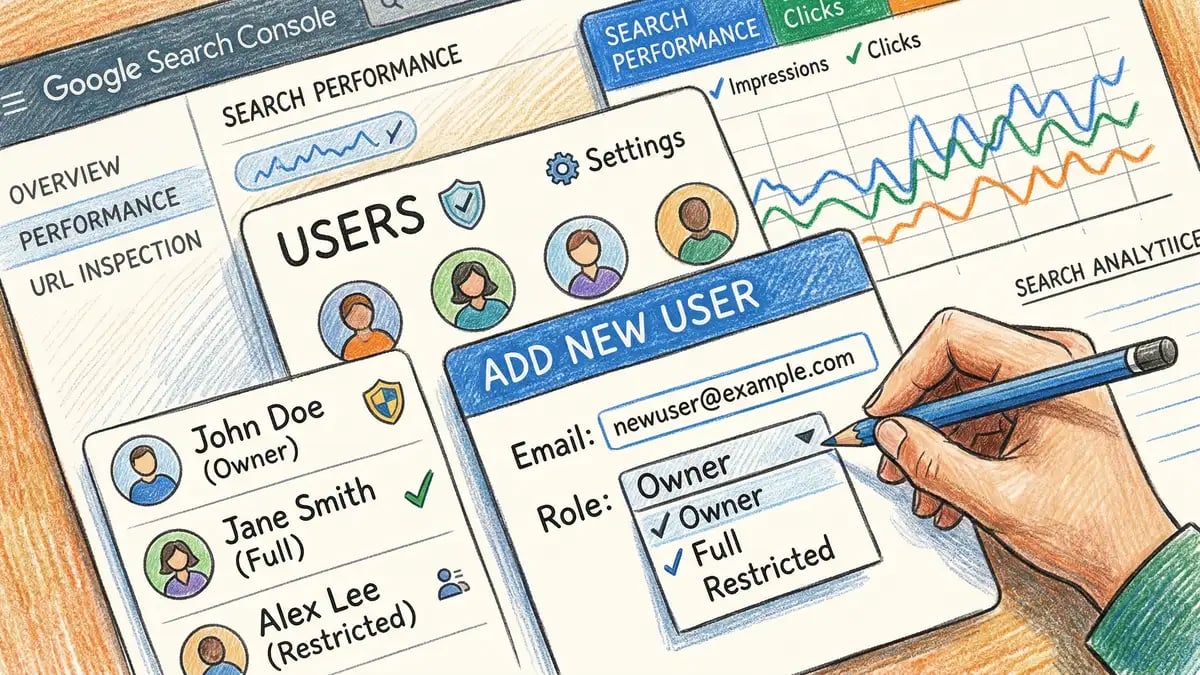
Google Search Console Permission Levels Explained
GSC offers four permission levels, each providing different capabilities. Choosing the right level follows the principle of least privilege—grant only the access needed to perform the required tasks.
| Permission Level | Key Capabilities | Recommended For |
|---|---|---|
| Owner (Verified) | Full control via verification token | Business owner only |
| Owner (Delegated) | Same as verified, granted by another owner | Senior internal staff |
| Full User | View all data, submit sitemaps, request indexing, disavow links | Active SEO agencies |
| Restricted User | View-only access to most reports | Reporting-only partners |
Whitehat SEO recommends granting Full User access to your SEO agency. This allows them to submit sitemaps, request indexing for updated pages, and use the disavow tool if necessary—all critical functions for effective SEO management. Reserve Owner access for internal stakeholders only.
Adding Users to Google Analytics 4: Complete Walkthrough
Google Analytics 4 replaced Universal Analytics in July 2023, introducing a new permission structure. GA4 uses a hierarchical system where account-level permissions automatically cascade to all properties beneath them—a critical consideration when granting agency access.
To add a user in GA4:
- Sign in to Google Analytics at analytics.google.com
- Click the Admin cog in the bottom-left corner
- Choose your access level: Account Access Management (all properties) or Property Access Management (single property)
- Click the blue + button and select Add users
- Enter the user's email address
- Select the appropriate role (see table below)
- Optionally apply data restrictions (No Cost Metrics or No Revenue Metrics)
- Click Add to confirm
The user receives an email notification with access instructions. Understanding these permissions properly helps ensure you maintain accurate marketing attribution whilst protecting sensitive business data.
GA4 Roles and Permission Levels
GA4 offers five distinct roles, plus two data restrictions. According to Google's official documentation, you should \"grant users only the permission level that they need to do their work\"—this minimises security risks and accidental data changes.
| Role | Capabilities | Agency Recommendation |
|---|---|---|
| Administrator | Full control, manage users, delete property | Never grant to external agencies |
| Editor | Configure settings, cannot manage users | Trusted long-term partners only |
| Marketer | Create audiences, events, conversions | Recommended for marketing agencies |
| Analyst | Create reports, explorations, dashboards | Recommended for reporting agencies |
| Viewer | Read-only access to reports | Stakeholders, limited partners |
For most agency relationships, Marketer or Analyst access at the property level provides the right balance. This allows your agency to create the custom reports and audiences needed to optimise campaigns without exposing sensitive account-wide settings. At Whitehat SEO, we typically request Analyst access to deliver comprehensive website audit reporting.
Security Best Practices for Analytics Access

Security should never be an afterthought when sharing analytics access. Microsoft research shows that 99.9% of compromised accounts don't have multi-factor authentication (MFA) enabled—yet 43% of security investigations find MFA wasn't configured.
Essential security measures:
- Require two-factor authentication for all users with analytics access—Google now enforces 2-Step Verification for administrator accounts
- Use work email addresses rather than personal Gmail accounts for clearer audit trails and easier offboarding
- Grant property-level access in GA4 rather than account-level to prevent cascade effects
- Apply data restrictions (No Cost Metrics, No Revenue Metrics) when agencies don't need financial data
- Conduct quarterly access audits to remove former employees and expired agency relationships
- Never share login credentials—always add users through the proper interface
Analytics consultant Paul Koks advises: \"You should only give access at this level to trusted people. Usually I don't recommend giving anyone outside of the company Owner access. Why should an agency be able to add or remove people?\" This principle applies equally to both GSC and GA4.
Need help setting up your analytics for accurate attribution? Start with a comprehensive website audit.
Get Your Free AuditUK GDPR Compliance When Sharing Analytics Access

UK GDPR imposes specific requirements when sharing analytics data with third parties. Under this framework, you (the business) are the Data Controller, whilst your marketing agency acts as a Data Processor. Google functions as a Sub-processor.
Critical distinction: Google Search Console is inherently GDPR-compliant as it doesn't collect personal user data. According to GDPR Local, \"explicit user consent is not required under data protection laws\" for GSC. However, GA4 collects personal data including IP addresses, device identifiers, and user interactions—requiring proper consent mechanisms and processor agreements.
Before granting GA4 access to an agency, ensure you have:
- A Data Processing Agreement (DPA) executed before sharing any personal data—Article 28 mandates this
- Due diligence documentation on your agency's security measures
- Updated privacy policy disclosing third-party processing
- Breach notification procedures (72-hour requirement)
- Clear data retention terms in your agreement
Reputable agencies will already have a standard DPA ready for you to sign. If your agency doesn't mention GDPR compliance during onboarding, consider it a red flag. Proper attribution reporting requires both legal compliance and technical accuracy.
Five Common Mistakes When Granting Analytics Access
Even experienced marketers make these errors when managing analytics access. Avoiding them protects both your data and your agency relationships.
- Giving Admin when Viewer would suffice—Users with Edit/Admin access can accidentally delete properties or alter data collection settings
- Forgetting to remove access when relationships end—Former agencies often retain access indefinitely, creating security and data exposure risks
- Sharing login credentials instead of adding users properly—This creates no audit trail and violates Google's Terms of Service
- Using personal Gmail accounts—Complicates offboarding and bypasses organisation security policies
- Forgetting inherited permissions in GA4—Account-level access automatically applies to ALL properties beneath it
Never Share Login Credentials
Common mistake: Sharing Google account passwords with agencies instead of adding them as users
Reality: This creates no audit trail, violates Google's Terms of Service, and makes it impossible to revoke access to individual tools. Always add users through the proper permission interface — it takes 2 minutes.
Rand Fishkin, co-founder of Moz and CEO of SparkToro, emphasises transparency in agency relationships: \"An agency's willingness to discuss failures reveals far more about their expertise and honesty than a parade of successes.\" The same applies to data access—a trustworthy agency will request only what they need and explain why.
How to Revoke Analytics Access When Changing Agencies
Removing user access is straightforward in both platforms, but GSC requires extra attention if you've granted Owner access through verification tokens.
For GSC: Navigate to Settings > Users and permissions, click the three-dot menu next to the user, and select Remove access. Critical: If you granted verified Owner access, you must also delete all verification tokens (HTML file, DNS record, or meta tag) or the former user can re-verify themselves.
For GA4: Go to Admin > Account/Property Access Management, find the user, click the three-dot menu, and select Remove. Changes take effect immediately.
Check GSC's \"Unused ownership tokens\" report regularly—it highlights verification methods that may have been forgotten, representing potential security gaps.
Why Your Agency Needs Both GSC and GA4 Access
Google Search Console and Google Analytics 4 serve complementary purposes. Your agency needs both to deliver effective results.
GSC answers: \"How do users find your site?\" It provides search performance data, indexing status, technical SEO insights, and Core Web Vitals metrics. This helps identify high-impression, low-click pages ripe for optimisation.
GA4 answers: \"What do users do once they arrive?\" It tracks user behaviour, conversions, traffic sources, and audience demographics. This confirms whether SEO improvements translate into business outcomes.
Together, these tools enable proper attribution reporting—connecting search visibility to actual revenue. Without both, your agency is working with incomplete data.
Frequently Asked Questions
What permission level should I give my SEO agency in Google Search Console?
Grant Full User access for active SEO work. This allows your agency to submit sitemaps, request indexing, and use the disavow tool—essential functions for effective SEO management. Reserve Owner access for internal team members only.
Do I need a Data Processing Agreement before sharing GA4 access with an agency?
Yes, UK GDPR Article 28 requires a written Data Processing Agreement before sharing personal data with any third party. GA4 collects personal data including IP addresses and device identifiers, making this legally mandatory.
Can I add a user to Google Analytics without giving them access to all my properties?
Yes—add users at the Property level rather than Account level. In GA4, navigate to Admin > Property Access Management instead of Account Access Management. This restricts their view to only the specific property you choose.
How do I remove a former agency's access to my analytics?
In GA4, go to Admin > Access Management, find the user, and click Remove. For GSC, use Settings > Users and permissions. If they had verified Owner access, also delete any verification tokens (HTML files, DNS records) to prevent re-verification.
What's the difference between Google Search Console and Google Analytics?
GSC shows how users find your site through Google Search—queries, impressions, clicks, and technical SEO data. GA4 shows what users do after arriving—behaviour, conversions, and engagement. Your agency needs both for complete visibility.
Need Expert Help With Your Analytics Setup?
Whitehat SEO helps UK B2B businesses connect analytics to real business outcomes. As a HubSpot Diamond Partner, we set up proper attribution reporting from day one.
References and Further Reading
- Google. (2025). Access and data-restriction management - Analytics Help. support.google.com/analytics/answer/9305587
- MeasureU. (2025). GA4 User Roles and Permissions - Everything You Need to Know. measureu.com/google-analytics-permissions/
- Online Metrics. (2025). Best Ways to Deal With Google Analytics User Permissions. online-metrics.com/user-permissions/
- Leadsie. (2025). How to Give Access to Google Search Console: Step-by-Step Guide. leadsie.com/blog/give-and-request-access-google-search-console
- Harper James. (2025). What is a Data Processing Agreement and when do you need one?. harperjames.co.uk/article/controller-to-processor-agreement/
- HubSpot. (2025). Integrate Google Analytics with HubSpot content. knowledge.hubspot.com
Clwyd Probert
Founder & Managing Director, Whitehat SEO
Clwyd Probert is the founder and managing director of Whitehat SEO, a HubSpot Diamond Solutions Partner based in London. With over 15 years in digital marketing, Clwyd specialises in helping B2B businesses build pipeline through integrated SEO, AEO, and HubSpot strategies.